How to log in to your personal account?
Here's how to log in to your Personal Account on Kupicom.
On the website
1. In the top right corner, click Log in:

2. Enter your email and click Next. A verification code will be sent to the email address you provided. Enter the code in the pop-up window that appears. If you have Google, or Apple ID accounts, you can log in with one click by clicking on the service icon below the "Log in to site" text.
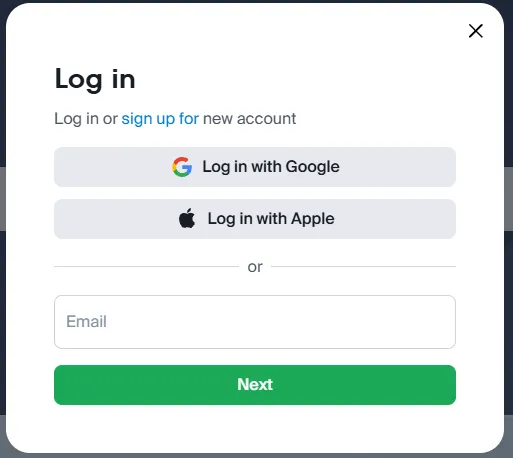
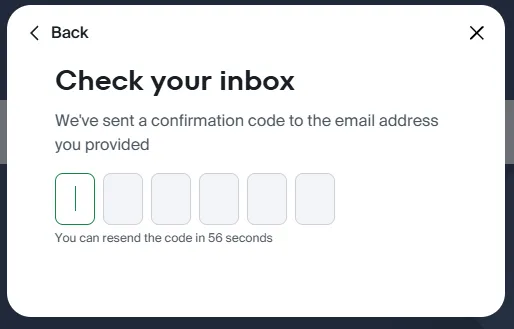
If you don't have a Personal Account, you can create one by clicking the sign up for button.
3. In the top right corner, click the user icon, then Orders:
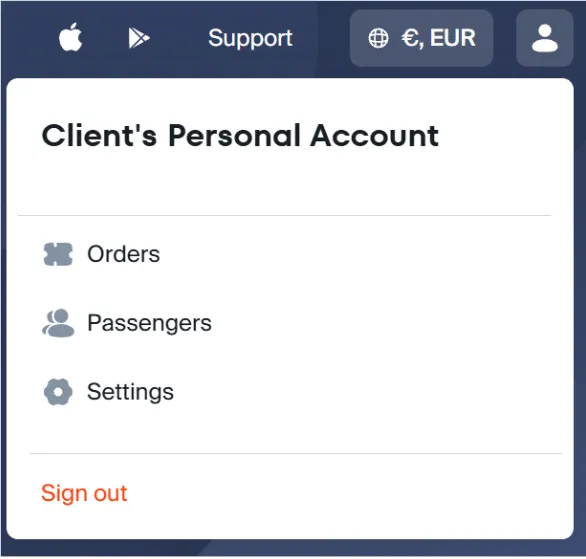
Hooray, you're in your Personal Account!
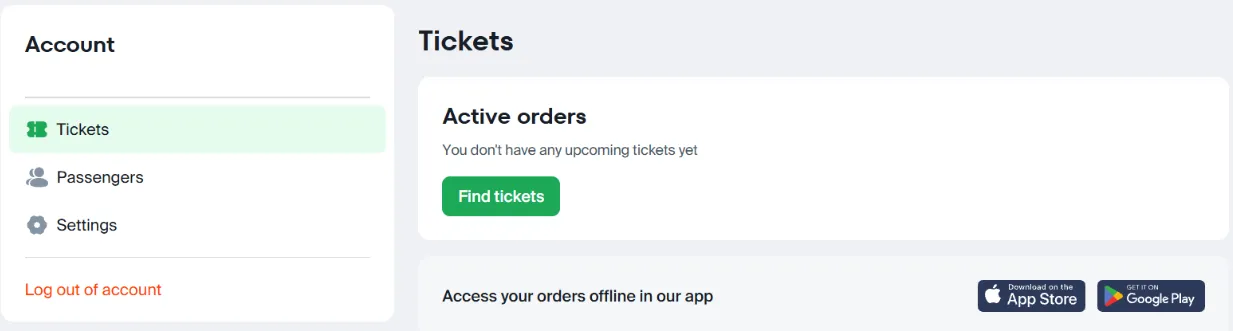
On the website from a mobile device
1. In the top right corner, click the "door" icon:
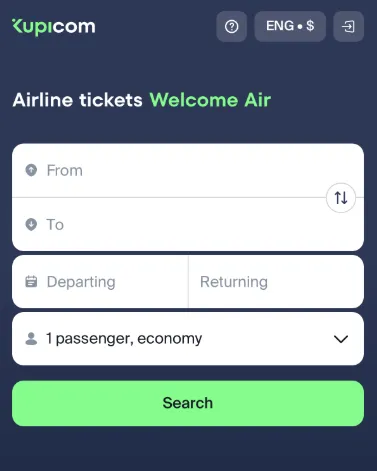
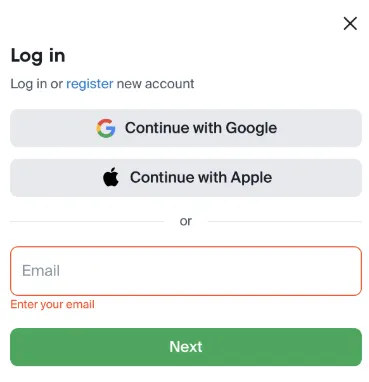
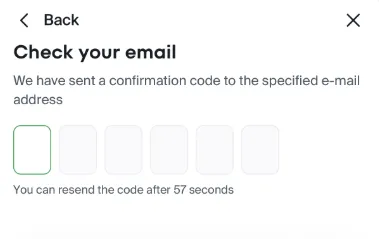
2. Enter your email and click Next. A verification code will be sent to the email address you provided. Enter the code in the pop-up window that appears. If you have Google, or Apple ID accounts, you can log in with one click by clicking on the service icon below the "Log in to site" text.
3. In the top right corner, click the "person" icon. Select Orders.
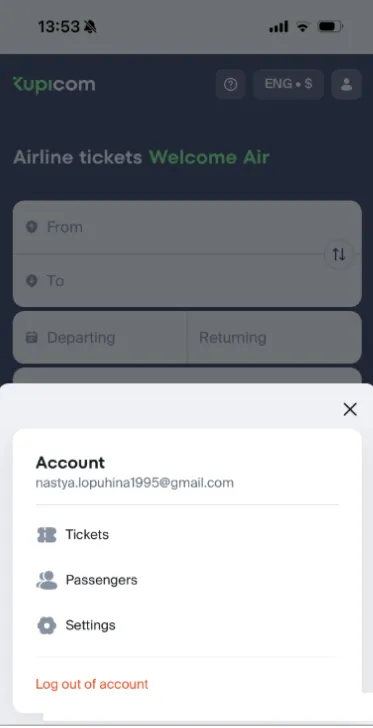
Hooray, you're in your Personal Account!
In the app
1. At the bottom of the screen, click Account.
2. Click Log in.
3. Enter your email and click Next. A verification code will be sent to the email address you provided. Enter the code in the pop-up window that appears. If you have Google, or Apple ID accounts, you can log in with one click by clicking on the service icon below the "Log in to site" text.
If you have Apple or Google accounts, you can click Other methods, click on the desired account, and log in without a username and password.
Hooray, you're in your Personal Account!